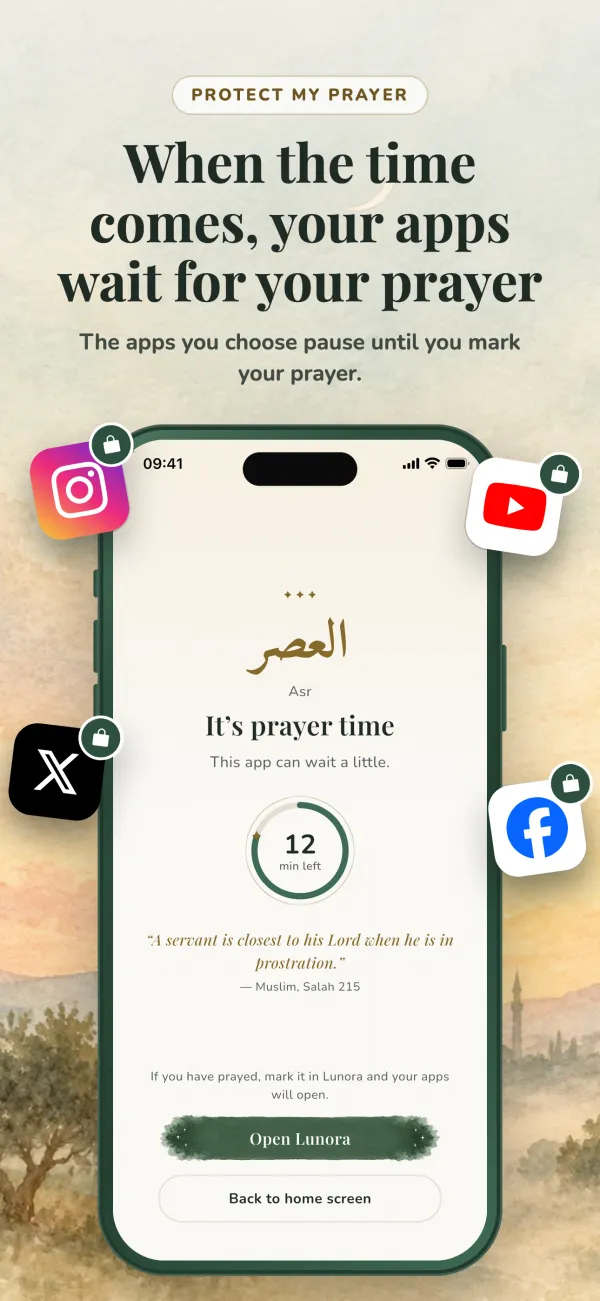
A short pause at prayer time, on your terms
Not a ban and not a punishment: a few minutes in which the apps that pull you away wait for you.
A short wait
Apps wait 15 minutes by default, counted from the start of the prayer time. On Android you can choose 10, 15 or 20 minutes; on iPhone, 15 or 20.
“I prayed” opens them
Mark your prayer and the apps open straight away. The prayer is also marked in today’s prayers on the Today screen.
You choose the apps
Nothing waits until you choose it. The Phone app and Lunora are never made to wait.
You choose the prayers
Pick the prayers you want protected. All five prayers are available with Lunora+.
Rests on your period days
While Period Mode is on, protection pauses without asking and returns when your period ends. Your choices stay exactly as they were.
A prayer streak
Count the days you have marked all five prayers. Marking a missed prayer later counts too, and period days never break the streak.
Set it up once, then let prayer time do the rest
- 1
Choose your apps
Open Protect My Prayer in Lunora and pick the apps that should wait at prayer time.
- 2
Allow the permission
On iPhone, Apple asks for Screen Time permission. On Android, Lunora needs Usage access and permission to display over other apps.
- 3
Choose prayers and waiting time
Select the prayers to protect and how long the apps should wait.
- 4
Prayer time comes in
If you open a chosen app, a calm screen appears instead: “It’s prayer time. This app can wait a little.”, with the minutes left.
- 5
Pray, then tap “I prayed”
Your apps open at once and the prayer is marked. If you’re running late, “I’ll pray in a moment” lets them open on their own when the time is up.
How it works on each phone
On iPhone
Protect My Prayer uses Apple’s Screen Time permission and needs iOS 16 or later. Setup has two steps: Screen Time permission, then choosing apps from Apple’s own list, where apps are grouped by category.
Your passcode stays with Apple; Lunora never sees it.
On Android
Setup has three steps: choose your apps, turn on Usage access, and allow Lunora to display over other apps so the waiting screen can appear.
Usage access lets Lunora see which app was opened: only its name, never what is inside. Nothing leaves your device.
If you need an app urgently, “An emergency? Lift it now” opens everything until the next prayer. And if a permission is switched off in your phone’s settings, Lunora tells you that protection has stopped instead of failing silently. You don’t need to keep Lunora open; opening it now and then is enough to keep protection set up.
Frequently asked questions
Protect My Prayer is a feature in the Lunora app. When a prayer time comes in, the apps you have chosen wait for a short time, 15 minutes by default. When you tap “I prayed” in Lunora they open right away, and the prayer is marked in your prayer log.
15 minutes by default, counted from the start of the prayer time. On Android you can choose 10, 15 or 20 minutes, and on iPhone 15 or 20. If you tap “I prayed” they open immediately; if you don't, they open on their own when the time is up.
Yes. Tap “An emergency? Lift it now” and the apps open straight away; they are protected again at the next prayer. The Phone app and Lunora are never made to wait.
Yes. On iPhone it uses Apple's Screen Time permission and needs iOS 16 or later. On Android it uses Usage access and the permission to display over other apps.
Protect My Prayer rests on its own while Period Mode is on and comes back when your period ends. It doesn't ask you, your chosen apps and prayers are kept, and period days don't break your prayer streak.
Lunora is free to download on iPhone and Android and has no ads. Protect My Prayer for all five prayers comes with Lunora+, a subscription you can start with a free trial.